

Minecraft Mods Download allows players to customize the game far beyond its default features. From performance improvements to massive content expansions, downloading the right mods opens up new ways to explore, build, and survive in Minecraft. Minecraft is more than just a game—it’s a world full of creativity, adventure, and endless possibilities. One of the main reasons for its popularity is the ability to add mods. Mods are user-created changes that add new features, improve graphics, or even change the way you play. If you want to make Minecraft fresh and exciting, learning how to download mods is essential. But for many players, especially beginners, the process can be confusing. This guide will help you understand how Minecraft mods work, where to find them, and how to download them safely. You’ll also learn common mistakes to avoid and get tips for making your experience smooth and fun.
What Are Minecraft Mods?
Minecraft mods are modifications created by the community. They change the game in many ways. Some mods add new animals, tools, or weapons. Others change the look of the world or add new challenges. Mods can make Minecraft easier, harder, or just more interesting.
There are thousands of mods available. Some are small and only change one thing. Others are big and add whole new systems. For example, you can find mods that let you build machines, explore new worlds, or fight new enemies.
Mods are popular because they let players make Minecraft their own. You are not limited to the official version. If you don’t like something in Minecraft, you can often find a mod to change it.
Types Of Minecraft Mods
Mods come in many shapes and sizes. Here are some of the most common types:
- Gameplay mods – Change how the game works. They can add new rules, mechanics, or challenges.
- Graphic mods – Improve the look of the game. For example, better textures, lighting, or more realistic water.
- Utility mods – Help you play. These include things like maps, inventory management, or shortcuts.
- Content mods – Add new items, blocks, mobs, or biomes. You can explore new areas, craft new tools, or meet new creatures.
- Performance mods – Make the game run better. They can fix bugs, reduce lag, or improve speed.
Some mods are made for single-player. Others are made for multiplayer or servers. Always check before downloading.
Why Download Minecraft Mods?
Mods make Minecraft more fun. Here’s why many players love them:
- Customization: You can change almost everything. Want new monsters? New tools? More adventure? Mods have you covered.
- Replay value: With mods, Minecraft never gets old. You can keep changing your world and gameplay.
- Community: Modding brings players together. You can share mods, join servers, or even create your own.
- Learning: Installing and using mods helps you learn about computers, coding, and problem-solving.
Where To Find Minecraft Mods
You must be careful where you download mods. Not all websites are safe. Some can have viruses, malware, or broken files. Here are trusted sources:
- CurseForge: The largest and most trusted site for Minecraft mods. It has thousands of mods, reviews, and updates.
- Planet Minecraft: Another popular site. It offers mods, maps, skins, and more.
- Minecraft Forum: An official place to discuss and share mods.
- Mod creators’ own websites: Sometimes, mod makers have their own pages with download links.
Always use trusted sites. Avoid random links or sites with too many ads.

Credit: www.youtube.com
How To Download Minecraft Mods
Downloading mods is simple if you follow the right steps. Here’s a step-by-step guide:
1. Check Your Minecraft Version
Mods are made for different Minecraft versions. You must use the right version. For example, mods for 1.16 may not work on 1.20. Always check before downloading.
2. Install Minecraft Forge Or Fabric
Most mods need Forge or Fabric. These are tools that help mods work with Minecraft. You must install them first.
- Forge: Most common for mods. Download from the official site.
- Fabric: Used for newer or lighter mods. Download from the official site.
To install:
- Go to the official Forge or Fabric site.
- Download the installer for your Minecraft version.
- Run the installer and follow the instructions.
- Open Minecraft Launcher and select the Forge or Fabric profile.
3. Download The Mod File
Find the mod you want on a trusted site. Make sure it matches your Minecraft version. Download the mod file—it will usually be a .jar file.
4. Add The Mod File To The Mods Folder
- Open Minecraft Launcher.
- Go to your Minecraft folder. It’s usually found at C: Users[YourName]AppDataRoaming.minecraft on Windows.
- Find the mods folder. If it’s not there, create one.
- Copy the .jar file into the mods folder.
5. Start Minecraft
Open Minecraft with Forge or Fabric selected. The mod should load automatically. If not, check for errors or version mismatches.
Safety Tips For Downloading Mods
Safety is important. Mods can be risky if you are not careful. Follow these tips:
- Only download from trusted sites.
- Scan files for viruses before opening.
- Read reviews and comments about the mod.
- Check for updates and bug fixes.
- Avoid downloading mods from ads or pop-ups.
Many beginners miss that mods can stop working after Minecraft updates. Always check for mod updates after installing a new version.

Credit: play.google.com
Common Problems And Solutions
Mods don’t always work perfectly. Here are common problems:
- Game crashes: Usually caused by version mismatch or conflicting mods. Remove mods one by one to find the problem.
- Missing mods folder: Create it manually if it’s missing.
- Slow performance: Some mods use a lot of computer power. Try performance mods to help.
- Mod not showing up: Check if you have Forge or Fabric installed. Also, check the mod version.
Non-obvious insight: Many new users don’t realize that some mods need other mods to work. These are called dependencies. Always read mod descriptions carefully.
How To Choose The Right Mods
There are thousands of mods. How do you pick the right ones? Here are some tips:
- Decide what you want. Do you want new items, better graphics, or new adventures?
- Read reviews and ratings.
- Check if the mod is updated often.
- Look at screenshots and videos.
- Make sure it matches your Minecraft version.
It’s smart to start with a few mods. Too many mods can cause problems.
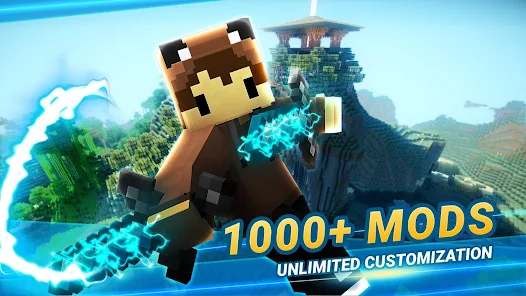
Credit: play.google.com
Popular Minecraft Mods In 2026
Every year, new mods become popular. Here are some top mods for 2026:
- OptiFine: Makes Minecraft run faster and look better. Adds HD textures and more settings.
- Just Enough Items (JEI): Shows recipes and items. Very helpful for crafting.
- Biomes O’ Plenty: Adds new biomes, plants, and animals.
- JourneyMap: Lets you see a map of your world as you play.
- The Twilight Forest: Adds a whole new dimension with bosses and adventure.
- Tinkers’ Construct: Lets you build custom tools and weapons.
- Quark: Adds small improvements and features.
- Serene Seasons: Adds changing seasons to your world.
- Create: Lets you build complex machines.
- Xaero’s Minimap: Adds a mini-map to your screen.
Each mod has its own features. Some are for adventure, others for building or survival.
Minecraft Mods Vs Resource Packs Vs Data Packs
Many beginners confuse mods with resource packs and data packs. Let’s compare them.
| Type | Main Function | Requires Forge/Fabric? | Typical Use |
|---|---|---|---|
| Mods | Add or change gameplay features | Yes | New items, mechanics, worlds |
| Resource Packs | Change textures, sounds | No | Better graphics, new sounds |
| Data Packs | Modify game rules, functions | No | New recipes, custom rules |
Mods are more powerful but harder to install. Resource packs and data packs are easier and don’t need Forge or Fabric.
How To Manage Multiple Mods
If you use many mods, managing them becomes important. Here’s how:
- Use a mod manager: Some launchers like MultiMC let you organize mods easily.
- Keep a backup: Always back up your Minecraft folder before adding new mods.
- Check for conflicts: Some mods don’t work together. Check forums for compatibility.
- Update regularly: Mods get updates to fix bugs and add features. Keep them updated.
Non-obvious tip: You can make different profiles for different sets of mods. This helps if you want to play with different styles.
Minecraft Mods For Multiplayer And Servers
Mods work differently in multiplayer. Here’s what you need to know:
- Server mods: Some mods only work on servers. You must install them on the server and client.
- Client mods only affect your own game.
- Vanilla servers don’t support mods. You need a Forge or Fabric server.
Always check if a mod is allowed on the server. Some servers block certain mods.
Comparing Forge And Fabric
Choosing between Forge and Fabric is important. Here’s a simple comparison:
| Feature | Forge | Fabric |
|---|---|---|
| Mod Support | More mods, older mods | Faster updates, newer mods |
| Performance | Heavier, sometimes slower | Lighter, faster |
| Ease of Use | Simple installer | Simple installer |
| Compatibility | Better for big mods | Better for small mods |
Many mods are only made for one platform. Always check which one is needed.
Advanced Modding: Creating Your Own Mods
If you want to go further, you can make your own mods. This is a big step, but it’s rewarding. Here’s how to start:
- Learn Java: Minecraft mods use Java programming. There are many online tutorials.
- Use modding tools: Tools like MCreator help you build mods without coding.
- Join the community: Modding forums and Discord groups are helpful.
Start small. Make simple changes, then try bigger projects.
How To Uninstall Minecraft Mods
Sometimes you want to remove mods. Here’s how:
- Open your Minecraft folder.
- Go to the mods folder.
- Delete the mod .jar file.
- Restart Minecraft.
Some mods leave extra files. Clean your folder if needed.
Legal And Ethical Considerations
Mods are usually free, but you must respect creators. Here are some rules:
- Never sell mods you didn’t make.
- Don’t steal code or ideas.
- Credit the creator if you share mods.
- Follow site rules for downloading and uploading.
Most creators work hard. Respect their work.
Mod Packs: Playing With Many Mods
Mod packs are collections of mods that work together. They are ready to play and easy to install. Here’s how they help:
- Save time: You don’t need to install each mod one by one.
- Better compatibility: Packs are tested to work together.
- Many themes: Adventure, tech, magic, survival.
Popular mod packs include Feed The Beast, SkyFactory, and RLCraft. You can find packs on CurseForge or the official sites.
How To Update Mods
Minecraft updates often break mods. Updating mods is important:
- Check for new versions on CurseForge or other sites.
- Download the updated .jar file.
- Replace the old file in your mods folder.
- Check for new dependencies.
Don’t forget to back up your world before updating.
Data Table: Minecraft Mod Download Statistics
To help you understand the popularity of mods, here’s a table with download statistics for some of the biggest mods:
| Mod Name | Downloads (Millions) | Release Year | Main Feature |
|---|---|---|---|
| OptiFine | 80+ | 2012 | Performance & Graphics |
| JEI | 60+ | 2015 | Recipe Viewer |
| Biomes O’ Plenty | 45+ | 2013 | New Biomes |
| JourneyMap | 35+ | 2011 | World Map |
| Tinkers’ Construct | 30+ | 2014 | Custom Tools |
These numbers show how popular mods are and how much the community values them.
Additional Tips For Beginners
Here are some tips that many beginners miss:
- Always back up your Minecraft world before adding mods. This saves your progress if something goes wrong.
- Try mods one at a time. If you add too many at once, it’s hard to find what causes problems.
- Read the mod instructions carefully. Some mods need extra steps or other mods to work.
- Don’t mix mods for different Minecraft versions. This is a common mistake and causes crashes.
- Ask for help in forums. The Minecraft community is friendly and helpful.
Minecraft Modding Communities And Resources
If you want to learn more, join modding communities. They offer help, guides, and news. Some good places:
- CurseForge forums
- Planet Minecraft discussions
- Official Minecraft forum
- Discord groups for modding
For deeper information about Minecraft modding, you can visit the Minecraft Wiki.
Frequently Asked Questions
How Do I Know If A Mod Is Safe?
Always download mods from trusted sites like CurseForge or Planet Minecraft. Look for positive reviews and scan files for viruses before installing.
Can I Use Mods On Minecraft Bedrock Edition?
Mods are mainly for Minecraft Java Edition. Bedrock Edition uses add-ons, which are different and more limited.
What Should I Do If Minecraft Crashes After Installing A Mod?
Remove the new mod and restart Minecraft. Check the mod version and compatibility. If problems continue, back up your world and try again.
Are Mods Free To Download?
Most Minecraft mods are free. Some creators accept donations, but you should never pay for basic downloads.
How Do I Update Mods After Minecraft Updates?
Check the mod site for new versions. Download the updated file and replace the old one in your mods folder. Always back up your world before updating.
Minecraft mods are a great way to make your game exciting and unique. By learning how to find, download, and manage mods, you can unlock new adventures and features. Remember to always use trusted sites, check compatibility, and keep backups.
With these tips, you’ll be ready to explore the world of Minecraft mods safely and confidently.
Conclusion
Choosing the right Minecraft Mods Download sources is essential for a safe and enjoyable modding experience. By downloading mods from trusted websites, using the correct mod loader, and matching your Minecraft version, you can avoid compatibility issues and keep your game running smoothly. Whether you’re looking for performance improvements, new adventures, or creative gameplay features, the right mods can completely transform your Minecraft world. Always keep your mods updated and download files responsibly to enjoy the best modded Minecraft experience.