

Minecraft is a game that inspires creativity. Players build worlds, fight monsters, and explore endless landscapes. But sometimes, the graphics feel simple or blocky. This is where shaders come in. Shaders can transform Minecraft’s look, making water shine, trees sway, and lighting feel real. Many players want these beautiful effects, but putting on shaders is not always easy, especially for beginners. If you’ve ever wondered how to make your Minecraft world look amazing, you’re in the right place. This guide will show you step-by-step how to put on shaders in Minecraft, with clear instructions, practical advice, and useful tips. Whether you play on Java Edition or Bedrock Edition, you’ll learn how to install shaders, avoid common mistakes, and enjoy a new visual experience.
What Are Shaders In Minecraft?
Shaders are special programs that change how Minecraft renders graphics. They add effects like realistic lighting, shadows, waves in water, and movement in leaves. With shaders, the game looks much more modern and alive.
There are many shader packs, each with different features. Some focus on soft lighting, others add dramatic skies or reflective surfaces. Shaders can make Minecraft feel like a new game.
Why Use Shaders?
- Better visuals: Shaders make the game look beautiful.
- More immersion: Realistic effects help you feel inside the world.
- Customization: You can choose shaders that fit your style.
Example: Before And After
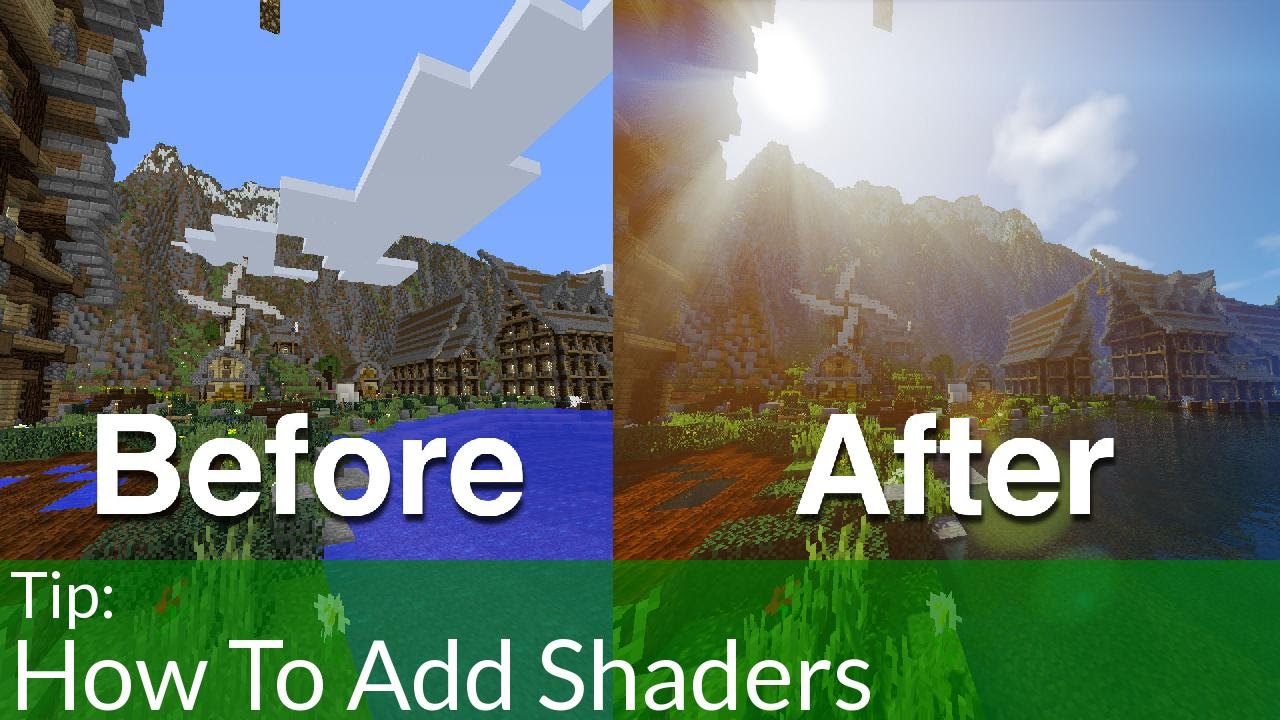
Imagine building a house near a river. With normal graphics, the water is flat and blue. With shaders, it sparkles, reflects the sky, and flows gently. Shadows from trees move as the sun changes. It’s a big upgrade!
Choosing The Right Shader Pack
There are many shader packs available. Picking the right one depends on your taste and computer power. Some shaders are heavy and need a strong PC. Others are light and work on most computers.
Popular Shader Packs
1. Seus (sonic Ether’s Unbelievable Shaders)
Famous for realistic lighting, beautiful water, and smooth shadows.
2. Sildur’s Shaders
Offers many versions, from simple to advanced. Good for weaker PCs.
3. Bsl Shaders
Balanced visuals and performance. Works well on most setups.
4. Chocapic13’s Shaders
Flexible options for different computers.
5. Kuda Shaders
Strong colors and reflections.
Comparing Shader Packs
Here’s a comparison of five popular shader packs:
| Shader Pack | Visual Quality | Performance Impact | Special Features |
|---|---|---|---|
| SEUS | High | Heavy | Realistic lighting, water effects |
| Sildur’s | Medium to High | Light to Medium | Customizable, good for low-end PCs |
| BSL | High | Medium | Balanced, great colors |
| Chocapic13 | Medium to High | Light to Heavy (varies) | Flexible settings |
| KUDA | Medium | Medium | Strong reflections |
Important Factors
- Computer specs: Stronger PCs can handle heavier shaders.
- Minecraft version: Not all shaders work on every version.
- Personal style: Do you like bright colors, soft lighting, or dramatic effects?
Common Mistake
Beginners often pick the fanciest shader and wonder why Minecraft lags. Start with a medium or light shader, then try others.
Preparing Your Computer For Shaders
Before you install shaders, check your computer. Shaders use more resources than regular Minecraft. If your PC is old, it may struggle.
Minimum Requirements
- Processor: Intel Core i5 or similar
- Graphics card: Nvidia GTX 1050 or AMD equivalent
- RAM: At least 8 GB
Minecraft will run with lower specs, but shaders need more power.
Checking Your Specs
To find your specs:
- On Windows, open Settings → System → About.
- On Mac, click the Apple icon → About This Mac.
Updating Drivers
Always update your graphics drivers. New drivers help Minecraft run shaders smoothly. Go to Nvidia or AMD’s website for updates.
Freeing Up Resources
Close other programs before playing. Too many apps can slow Minecraft with shaders.
Installing Optifine: The Key To Shaders
Most shaders need OptiFine, a special Minecraft mod. OptiFine lets you use shaders and improves performance.
What Is Optifine?
OptiFine is a tool that adds many graphics options. It makes Minecraft run better and allows shader packs. Without OptiFine, shaders won’t work in Java Edition.
How To Install Optifine
- Go to the official OptiFine website: Https://optifine.net/downloads
- Download the version that matches your Minecraft. For example, if you play 1.20, download OptiFine for 1.20.
- Open the downloaded file. If you see a warning, click “More info” and “Run anyway.”
- Click “Install.” OptiFine will add a new option in your Minecraft launcher.
Launching Minecraft With Optifine
- Open the Minecraft launcher.
- Under “Installations,” select “OptiFine.”
- Click “Play.”
Now, Minecraft has OptiFine. You’re ready for shaders.
Common Mistake
Many users forget to pick OptiFine in the launcher. If you don’t see “Shaders” in graphics settings, you’re not using OptiFine.
Downloading And Adding Shader Packs
After installing OptiFine, you can add shader packs.
Where To Find Shader Packs
- Official websites: Most shader creators have their own sites.
- Minecraft forums: Trusted places to find packs.
- CurseForge: A safe site for mods and shaders.
Avoid random sites. Some have viruses. Always use trusted sources like CurseForge.
How To Download Shaders
- Find a shader pack you like.
- Download the zip file. Do not unzip it.
- Save the file somewhere you can find it.
Adding Shaders To Minecraft
- Open Minecraft with OptiFine.
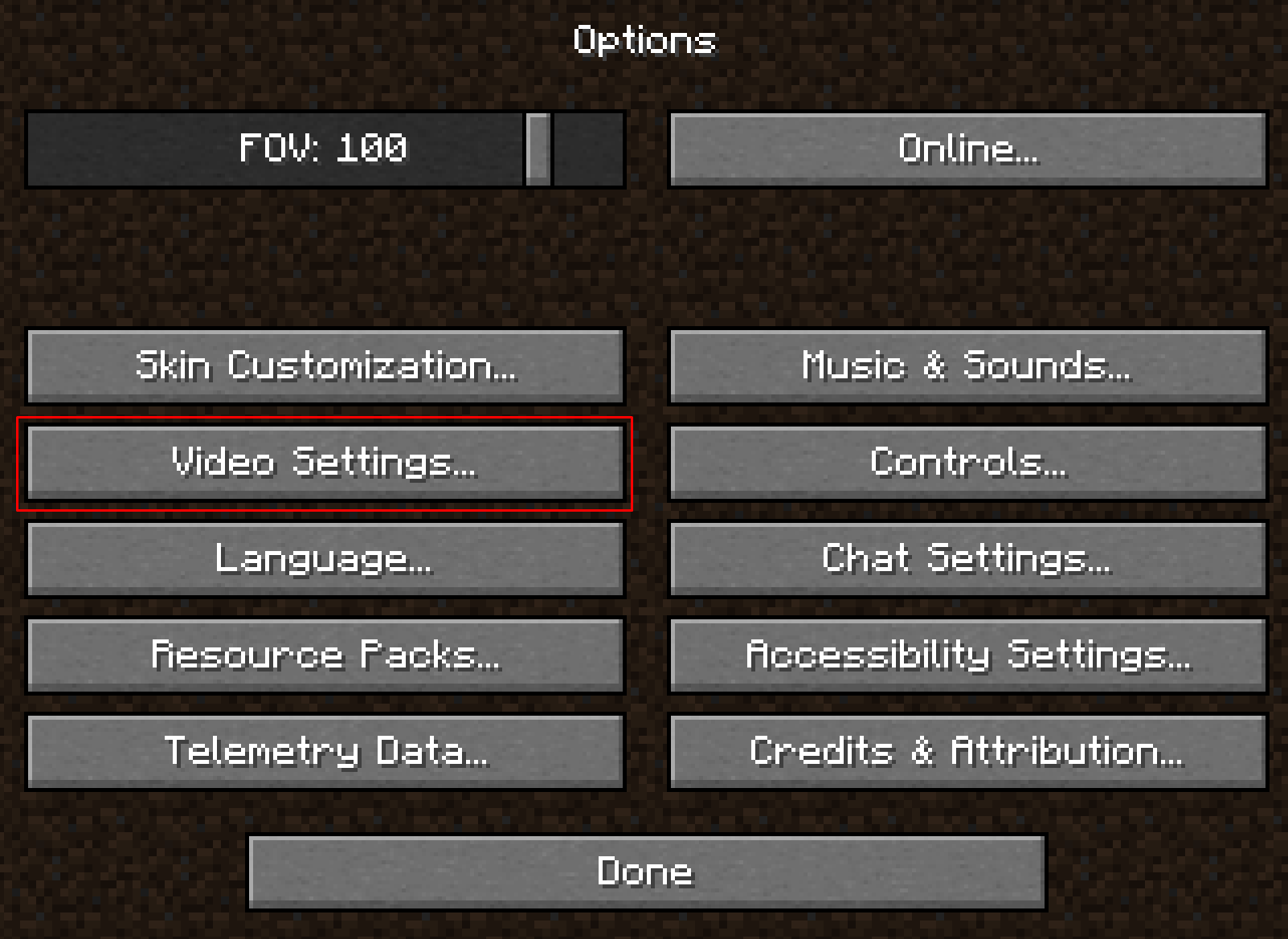
- Go to “Options” → “Video Settings” → “Shaders.”
- Click “Shaders Folder.” A window opens.
- Move the shader zip file into this folder.
- Go back to Minecraft. The shader pack should appear in the list.
- Click on the shader pack to use it.
Example: Installing Bsl Shaders
- Download BSL.zip from the official site.
- Put BSL.zip into the Shaders folder.
- Select BSL in Minecraft.
Non-obvious Insight
Sometimes, the shader pack won’t show up. Make sure you didn’t unzip the file. Minecraft needs the zip format.
Adjusting Shader Settings For Performance
Shaders can make Minecraft lag. But you can change settings to fit your computer.
How To Change Settings
- Go to “Options” → “Video Settings” → “Shaders.”
- Click “Shader Options.”
- Adjust things like shadow quality, water reflection, and lighting.
What Settings Matter Most
| Setting | Impact on Performance | Visual Change |
|---|---|---|
| Shadow Quality | High | Sharper shadows |
| Water Effects | Medium | Reflective, moving water |
| Render Distance | High | Sees farther in-game |
| Ambient Occlusion | Medium | Soft lighting |
| Bloom | Low | Brighter lights |
Tips For Smooth Gameplay
- Lower shadow quality first.
- Reduce render distance if the game lags.
- Turn off heavy effects like motion blur.
- Try “Lite” versions of shader packs.
Example
If Minecraft runs slow, set “Shadow Quality” to “Low” and “Render Distance” to “8. ” The game will look good and play smoothly.
Non-obvious Insight
Some shader packs have hidden settings. Explore “Shader Options” for advanced controls, like weather effects or color tweaks.
Minecraft Bedrock Edition: Shaders And Alternatives
Most shaders work with Java Edition. Bedrock Edition (Windows 10, mobile, console) is different. It does not support OptiFine or traditional shaders. But there are alternatives.
What Works In Bedrock Edition?
- Add-ons: Some creators make “shader-like” add-ons.
- Resource Packs: Change colors, lighting, and textures.
- Third-party apps: On mobile, apps can add effects. Be careful with downloads.
Installing Resource Packs In Bedrock
- Download the pack from a trusted site.
- Open Minecraft Bedrock.
- Go to “Settings” → “Storage.”
- Click “Import” and choose the pack.
- Activate the pack in “Global Resources.”
Example: Installing A Bedrock Shader
On Windows 10:
- Download “Vanilla RTX” from the creator’s site.
- Double-click the .mcpack file.
- Minecraft opens and adds the pack.
- Activate in “Settings.”
Limitations
- Bedrock shaders are not as advanced as Java shaders.
- RTX shaders require Nvidia RTX graphics cards.
Non-obvious Insight
Some Bedrock “shader” packs only change color and lighting, not real shadows or water. Read the pack description before installing.
Troubleshooting Shader Issues
Shaders can cause problems. Knowing how to fix them saves time.
Common Problems
- Game crashes: Usually from wrong shader version or low specs.
- Missing shaders folder: OptiFine not installed correctly.
- Lag and stutter: Shader pack too heavy for your PC.
- Weird colors or effects: Outdated graphics drivers.
How To Fix Issues
- Update Minecraft and OptiFine: Always use the latest versions.
- Check graphics drivers: Update them from Nvidia or AMD.
- Switch shader packs: Try a lighter pack.
- Lower settings: Reduce effects in “Shader Options.”
- Check logs: In Minecraft folder, “latest.log” can show errors.
Example Fix
If Minecraft crashes when loading a shader:
- Remove the shader zip from the folder.
- Start Minecraft.
- Add a different shader pack.
Non-obvious Insight
Sometimes, Minecraft crashes because of a conflict with another mod. Try removing mods or playing with only OptiFine and shaders.
Credit: www.namehero.com
Advanced Tips: Customizing And Mixing Shaders
Once you get comfortable, you can tweak shaders for a unique look.
Editing Shader Files
Some packs let you edit settings in their folder. Open the zip, find “config” files, and change values. Always keep a backup.
Mixing Resource Packs And Shaders
You can use resource packs with shaders. Resource packs change textures, while shaders change lighting. Mixing both gives amazing results.
Example: Realistic World
- Use a realistic texture pack (like “Faithful”).
- Add a shader pack (like “SEUS”).
- The world looks almost real.
Sharing Your Setup
Many players post screenshots or settings online. Join forums and share your shader setup.
Non-obvious Insight
Some shader packs have “presets. ” Try different presets for fast changes. “Low,” “Medium,” “High,” and “Ultra” let you switch quickly.
Comparing Minecraft Without And With Shaders
The difference is clear when you see Minecraft with and without shaders.
| Feature | Vanilla Minecraft | With Shaders |
|---|---|---|
| Water | Flat, blue | Reflective, moving |
| Lighting | Simple | Dynamic, realistic |
| Shadows | None or basic | Soft, moving |
| Sky | Static | Clouds, sun rays |
| Leaves | Still | Waving in wind |
Example: Building A Castle
- Vanilla: The castle looks blocky and plain.
- With shaders: Sunlight shines through windows, water glows in the moat, and shadows dance on walls.
:max_bytes(150000):strip_icc()/how-to-install-minecraft-shaders-12-0a64db98a4c746bd84c472a9f03d82a2.jpg)
Credit: www.lifewire.com
Extra Tips For Beginners
- Start with light shaders if you’re new.
- Always keep backup copies of your worlds.
- Try shaders in a test world first.
- Join Minecraft communities for advice.
Non-obvious Insight
Some shader packs are updated often. Check for new versions to fix bugs and improve visuals.
Frequently Asked Questions
How Do I Know If My Computer Can Handle Shaders?
Check your graphics card and RAM. If you have at least a GTX 1050 and 8 GB RAM, most medium shaders will work. Try “Lite” shader packs if your PC is older.
Can I Use Shaders With Other Mods?
Yes, but some mods may conflict with shaders. Always use OptiFine for Java Edition. If you have problems, remove other mods and test shaders alone.
Are Shaders Available For Minecraft Bedrock Edition?
Bedrock does not support traditional shaders, but you can use resource packs and some “shader-like” add-ons. True shaders like OptiFine are for Java Edition only.
Why Do My Shaders Look Weird Or Broken?
This usually happens if you use the wrong shader version or have outdated graphics drivers. Update everything, and make sure the shader pack matches your Minecraft version.
Will Shaders Make Minecraft Multiplayer Laggy?
Shaders only affect your own graphics. Multiplayer lag comes from internet or server issues. But heavy shaders can make your game slow, so choose lighter packs for multiplayer.
Minecraft is more fun and beautiful with shaders. The process may seem complex, but with clear steps and careful choices, anyone can put on shaders and transform their world. Try different packs, adjust settings, and enjoy the new visuals. Remember to use trusted sources, keep your software updated, and start with lighter shaders if you’re unsure.
With patience and practice, your Minecraft experience will shine brighter than ever.
Credit: www.youtube.com
Conclusion
Knowing How to Put on Shaders in Minecraft is one of the easiest ways to transform the game’s visuals and create a more immersive experience. With the right shader pack and a compatible mod like OptiFine or Iris Shaders, you can enjoy realistic lighting, dynamic shadows, improved water effects, and stunning landscapes. Before installing shaders, make sure your system meets the recommended requirements and always download shader packs from trusted sources. Once everything is set up correctly, you’ll be ready to experience Minecraft with beautiful graphics and smoother gameplay