

Minecraft is one of the most popular games in the world, played by millions of people every month. Its simple graphics, creative gameplay, and endless possibilities attract both young and adult gamers. But sometimes, Minecraft doesn’t start as expected. You may see an error message, and one of the most frustrating is Error Code 1. This error stops you from playing, and the solution is often unclear. If you’ve seen this error, you know how annoying it can be.
Many guides offer quick fixes, but Error Code 1 is not always easy to solve. It can be caused by different problems: software settings, missing files, or even hardware limits. Some fixes work for one person, but not for another. So, understanding what Error Code 1 Minecraft really means—and how to solve it step-by-step—is important if you want to get back to building, exploring, and surviving in your blocky world.
In this article, you’ll find clear answers. We’ll break down the main causes, show you how to fix Error Code 1, and explain why some solutions work better than others. You’ll also see real examples, practical tips, and data that helps you avoid common mistakes.
By the end, you’ll know how to solve Error Code 1 and prevent it from coming back.
What Is Error Code 1 In Minecraft?
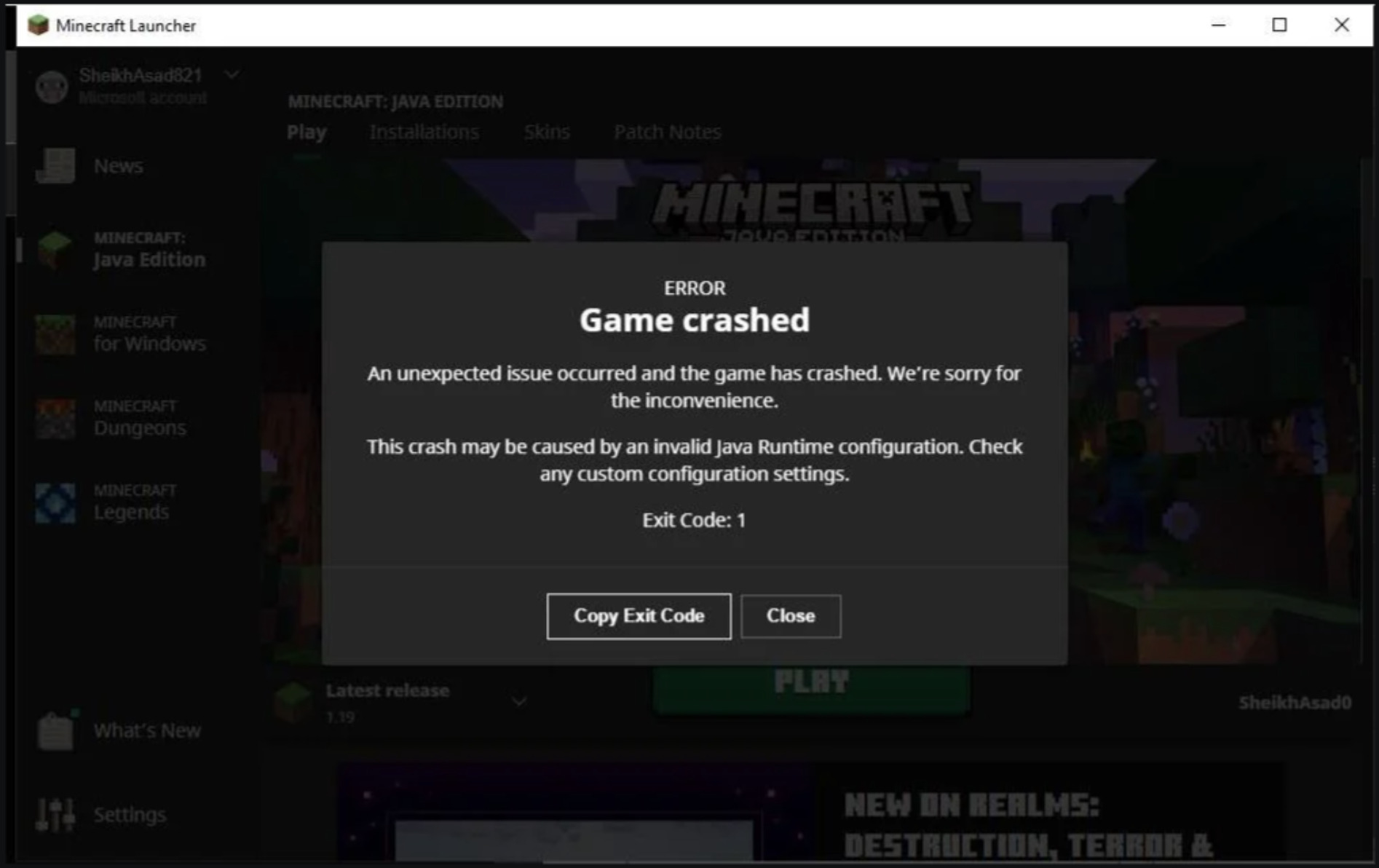
Error Code 1 is a launch failure message in Minecraft. It usually appears when the game cannot start, either on the Java Edition or sometimes on the Bedrock Edition for Windows. The error message may look like:
> “game Crashed With Exit Code 1”
This code means Minecraft tried to launch, but something stopped it. It’s not a specific bug, but a signal that something in your system is preventing the game from running. The root cause can be hard to identify because Error Code 1 is linked to many different issues.
Common Symptoms
- Minecraft launcher closes after showing the error
- Game crashes before loading worlds or menus
- Sometimes, additional details show “Java Exception” or “Java error”
- Occasionally, the error pops up after installing new mods or changing game settings
- Rarely, the launcher may freeze and not display any error details
Understanding these symptoms can help you spot Error Code 1 faster. Sometimes, you may notice the game slows down or stops responding before the error appears. If this happens, it’s usually a sign of a deeper problem, like a Java conflict or a corrupt file.
Why Does This Error Happen?
Error Code 1 is a generic failure. It’s like a “catch-all” error. It can be caused by:
- Incorrect Java installation or version
- Wrong game settings or launch arguments
- Missing or corrupt Minecraft files
- Conflicts with mods or plugins
- Outdated drivers or hardware limits
The most common trigger is a problem with Java, since Minecraft Java Edition relies on it to run. But other causes are possible, especially if you use mods, custom launchers, or have changed system settings.
Sometimes, the cause is hidden. For example, a Windows update may change permissions or paths, making Java harder to find. Or, a new mod might use more memory than your computer can handle. Beginners may not realize that even a small change—like updating a driver or installing a new antivirus—can trigger Error Code 1.
Main Causes Of Error Code 1 Minecraft
To fix Error Code 1, you first need to understand what causes it. Here are the main reasons, based on real user reports and Minecraft support data.
1. Java Installation Issues
Minecraft Java Edition needs Java Runtime Environment (JRE). If Java is missing, outdated, or corrupted, the game cannot start.
- Wrong Java version (Minecraft needs Java 8 or Java 17 for newer versions)
- Java not installed or broken
- Multiple Java versions causing conflicts
- Java path not set correctly in system variables
Sometimes, players update Java without removing older versions. This can lead to confusion, as Minecraft may try to use the wrong Java path. Also, if Java is installed in a non-standard location, the launcher might not find it.
2. Incorrect Launch Arguments
The Minecraft launcher sometimes uses custom arguments to start the game. If these are wrong, Error Code 1 appears.
- Misconfigured JVM arguments (like -Xmx or -Xms)
- Typing mistakes in arguments
- Arguments not supported by your system
- Using advanced flags meant for developers
For example, some guides recommend increasing RAM with `-Xmx4G`, but if your computer only has 4GB total, this can cause the game to crash. New players often copy arguments from forums without understanding what they do, leading to unexpected errors.
3. Mod Conflicts
Many players use mods to customize Minecraft. But mods can clash with each other or with the game itself.
- Incompatible mods (wrong version)
- Mods missing dependencies
- Corrupt mod files
- Too many mods installed at once
Mod loaders like Forge or Fabric sometimes update, making old mods unusable. Beginners may install mods for a newer or older game version, causing errors. If you use mod packs, make sure all mods are updated and compatible.
4. Corrupt Game Files
If Minecraft files are missing or damaged, the game fails to start.
- Failed updates
- Manual file changes gone wrong
- Antivirus deleting files
- Download interruptions leading to incomplete files
It’s easy to accidentally delete or overwrite important files when experimenting with settings. Antivirus software may also see Minecraft files as a threat and remove them without warning.
5. Graphics Drivers And Hardware
Minecraft uses your computer’s graphics card. If drivers are outdated or hardware is too old, Error Code 1 can appear.
- Old GPU drivers
- Unsupported hardware
- Conflicts with integrated and dedicated graphics
- GPU overheating or hardware failures
Sometimes, Minecraft tries to use the weaker integrated GPU instead of your dedicated card. This often happens on laptops, especially after updates. If your graphics drivers are several years old, Minecraft may not start at all.
6. Operating System Problems
Sometimes, system settings or permissions block Minecraft.
- Lack of admin rights
- Windows Defender or antivirus blocking Java
- Outdated Windows version
- User account restrictions
If you play on a school or work computer, extra restrictions may block Java or Minecraft. Windows updates can change security settings, making it harder for the launcher to access needed files.
7. Minecraft Launcher Issues
The official Minecraft Launcher can have bugs, especially after updates.
- Launcher not updated
- Launcher settings misconfigured
- Third-party launchers causing conflicts
- Launcher cache corruption
If you use alternative launchers, like TLauncher or MultiMC, they sometimes require special setup. Outdated launchers may not handle the latest game versions, causing errors.

Credit: www.reddit.com
How To Fix Error Code 1 Minecraft
Solving Error Code 1 is not always simple. You may need to try several solutions. Here’s a step-by-step guide to fix the error, starting from the most common causes.
Step 1: Check Your Java Installation
1. Uninstall Old Java Versions
Go to your system’s Programs list. Remove all Java versions.
- Install the Correct Java Version
- For Minecraft 1.17 or newer, install Java 17
- For older versions, use Java 8
Download From The Official Site: java.com
3. Restart Your Computer
After installing Java, restart to refresh system paths.
4. Verify Java Path
Open Command Prompt and type:
`java -version`
This should show the installed version.
If you see an error here, Java is not installed correctly. Double-check the installation folder and try reinstalling.
Step 2: Reset Minecraft Launch Arguments
- Open the Minecraft Launcher.
- Select the “Installations” tab.
- Choose your game version and click “Edit.”
- Remove all custom JVM arguments.
- Save and try launching Minecraft.
Note: If you need custom arguments for mods, only use recommended settings. Too much memory or unsupported flags can cause crashes.
Some players also add arguments for performance, like `-XX:+UseG1GC`. If you’re not sure what an argument does, remove it to avoid problems.
Step 3: Remove Or Update Mods
- Go to your mods folder:
Usually At `%appdata%.minecraftmods`
- Move all mods to another folder.
- Try launching Minecraft without mods.
- If it works, add mods back one by one to find the problematic mod.
- Update all mods to the correct game version.
If you use a mod loader, check for updates or reinstall the loader. Some mod packs offer tools to auto-update mods, making this step easier.
Step 4: Repair Minecraft Files
- In the launcher, click “Settings.”
- Use the “Repair” or “Reset” option (if available).
- Alternatively, delete the `.minecraft` folder (back up your saves first).
- Reinstall Minecraft.
If you’re worried about losing worlds, copy the `saves` folder to a safe location before deleting `. minecraft`.
Step 5: Update Graphics Drivers
- Identify your GPU (NVIDIA, AMD, or Intel).
- Visit the official driver site.
- Download and install the latest drivers.
- Restart your computer.
Tip: For laptops, check if you have both integrated and dedicated GPUs. Make sure Minecraft uses the dedicated GPU.
You can do this by opening your graphics control panel and setting Minecraft as a high-performance app.
Step 6: Check System Permissions
- Right-click the Minecraft Launcher.
- Choose “Run as administrator.”
- Add exceptions for Java and Minecraft in Windows Defender or your antivirus.
If your antivirus blocks Minecraft, you may see the error even after fixing other issues. Check the quarantine folder for deleted files.
Step 7: Update Minecraft Launcher
- Open the launcher.
- Click “Settings.”
- Check for updates.
- Install any available updates.
New launcher versions fix many bugs and improve compatibility with the latest Java and game updates.
Step 8: Check Windows Updates
- Open Windows Settings.
- Go to “Update & Security.”
- Click “Check for updates.”
- Install all pending updates.
Windows updates often include bug fixes and new drivers that help Minecraft run better.
Step 9: Try A Clean Reinstall
If nothing works, do a full reinstall:
- Uninstall Minecraft and Java.
- Delete leftover folders at `%appdata%.minecraft`
- Restart your PC.
- Install Java and Minecraft again.
This removes hidden problems, like corrupt settings or leftover mod files.
Real Examples And User Data
Understanding how often Error Code 1 happens, and what fixes work best, helps you solve it faster. Here’s a summary based on user reports and support forums.
| Cause | % of Cases (Approx.) | Most Effective Fix |
|---|---|---|
| Java Issues | 40% | Reinstall Java |
| Mod Conflicts | 25% | Remove or update mods |
| Corrupt Files | 15% | Repair or reinstall Minecraft |
| Graphics Drivers | 10% | Update drivers |
| Other Causes | 10% | Check permissions/settings |
This data shows that Java problems are the most common cause. Many beginners overlook Java updates, especially when Minecraft itself updates to need a newer Java version. Mod conflicts are also frequent, especially for players who use many mods.
If you’re part of a multiplayer server community, ask others if they’re experiencing the same error. Sometimes, a new mod or server update causes problems for many players at once.

Credit: www.youtube.com
Comparing Minecraft Error Codes
Error Code 1 is just one of several launch errors in Minecraft. Here’s a comparison of the most common codes and what they mean.
| Error Code | Message | Main Cause | Difficulty to Fix |
|---|---|---|---|
| 1 | Game crashed with exit code 1 | Java/config/mods | Medium |
| -1 | Game crashed with exit code -1 | Corrupt files | Medium |
| 0 | Game closed with exit code 0 | Normal exit | Easy |
| 255 | Game crashed with exit code 255 | Fatal Java error | Hard |
| -1073740791 | Game crashed with exit code -1073740791 | Access violation | Hard |
Error Code 1 is not the hardest to fix, but it can be tricky if you don’t know where to look. Many guides confuse it with Code -1 or 255, which have different causes.
If you see Error Code 255, it usually means a deep Java problem, sometimes related to system memory or hardware failure. Code -1 often signals a corrupt installation. Always check the exact error code before searching for solutions.
Why Some Fixes Don’t Work
Some solutions seem to work for a few people but not for everyone. Here’s why:
- Minecraft is updated frequently. Newer versions often require newer Java or mods.
- Mods are made by different developers, so compatibility changes.
- Your computer’s setup (Windows version, antivirus, hardware) can block Minecraft even if it works for others.
- Some guides suggest changing JVM arguments, but these are only needed in rare cases.
Non-obvious insight: Many players try to install multiple Java versions to run different mods. This usually causes conflicts and makes Error Code 1 worse. It’s better to use only one Java version at a time.
Another mistake: Using an old Minecraft launcher with a new game version. Always update your launcher before updating the game.
Also, avoid using pirated or unofficial versions of Minecraft. These often have hidden errors and missing files, making troubleshooting much harder. If you use a cracked launcher, you may see Error Code 1 even after following all the steps above.
Advanced Troubleshooting For Error Code 1
If basic fixes don’t work, try these advanced steps.
Check Minecraft Logs
Minecraft creates log files that show what’s wrong.
- Go to `%appdata%.minecraftlogs`
- Open the latest log file with Notepad.
- Look for lines starting with “Exception” or “Error.”
- Search the error message online for specific solutions.
You may see details like “java. lang. NullPointerException” or “missing dependency. ” These clues help find the exact cause.
Use Compatibility Mode
If you run an old version of Minecraft:
- Right-click the launcher.
- Choose “Properties.”
- Go to “Compatibility.”
- Set to Windows 8 or Windows 7 mode.
- Apply and try launching.
This is useful if your computer has updated recently or if Minecraft runs better on older Windows versions.
Disable Overlay Software
Some overlay programs (Discord, NVIDIA GeForce Experience, etc. ) Can block Minecraft.
- Close all overlay programs.
- Launch Minecraft again.
Overlays can interfere with graphics and permissions, especially after updates.
Check Ram And System Resources
Minecraft needs enough RAM to run. If your computer is low on memory, Error Code 1 can appear.
- Check Task Manager for running apps.
- Close unnecessary apps.
- Try lowering Minecraft’s RAM usage in launcher settings.
Practical tip: If you use mods, don’t set RAM too high. More RAM doesn’t always mean better performance.
If you set RAM above what your system can handle, Minecraft may crash instantly. Start with 2GB or 4GB and adjust as needed.
Restore Default Settings
If you’ve changed Minecraft settings:
- Delete the `options.txt` file in `.minecraft` folder.
- Minecraft will create a new file with default settings.
This resets graphics, controls, and other options, removing hidden conflicts.
Preventing Error Code 1 In The Future
Solving Error Code 1 is good, but preventing it is better. Here’s how to keep Minecraft running smoothly.
- Always update Java and Minecraft launcher.
- Use mods that match your game version.
- Avoid changing JVM arguments unless you know what they do.
- Run Minecraft as administrator, especially after updates.
- Check for Windows and graphics driver updates monthly.
- Back up your saves before making changes.
Non-obvious insight: Some antivirus programs silently block Java or Minecraft files after updates. Add exceptions for both programs to avoid surprise errors.
It’s also wise to keep a log of changes you make. If you update mods or tweak settings, write down what you did. This makes troubleshooting easier if an error appears later.
Credit: shockbyte.com
Minecraft System Requirements And Compatibility
Error Code 1 can sometimes appear if your computer doesn’t meet Minecraft’s requirements. Here’s a quick comparison of minimum and recommended specs.
| Component | Minimum | Recommended |
|---|---|---|
| CPU | Intel Core i3 | Intel Core i5 or above |
| RAM | 4 GB | 8 GB |
| GPU | Intel HD Graphics 4000 | Dedicated GPU (NVIDIA/AMD) |
| Storage | 1 GB free | 4 GB free |
| OS | Windows 7+ | Windows 10/11 |
If your hardware is below minimum specs, Minecraft may crash with Error Code 1 or similar errors.
Make sure you have enough free space for updates and mods. Old computers with slow hard drives can also trigger errors, especially when installing large mod packs.
Community Solutions And Support
Many Minecraft players share their solutions online. Here are a few tips that work for others:
- Use only the official launcher for best results.
- Avoid third-party launchers unless you know how to configure them.
- Join Minecraft forums or Reddit for help with tricky errors.
- Always back up your `.minecraft` folder before big changes.
You can also check the official Minecraft support site for updates and bug reports: Minecraft Help
If you’re stuck, take screenshots of the error and share them in online communities. Other players may recognize the cause and offer quick advice.
Frequently Asked Questions
What Is Error Code 1 In Minecraft?
Error Code 1 means Minecraft crashed during launch. It’s a generic error showing that something stopped the game from starting, often related to Java, mods, or system settings.
Can Error Code 1 Be Caused By Mods?
Yes. Mod conflicts are a common cause. If mods are outdated, incompatible, or missing files, Error Code 1 can appear. Remove or update mods to fix this.
What Java Version Should I Use For Minecraft?
For Minecraft 1.17 or later, use Java 17. For older versions, use Java 8. Multiple Java versions can cause conflicts, so install only the required one.
Does Error Code 1 Happen On Bedrock Edition?
Rarely. Error Code 1 is mostly seen in Java Edition. Bedrock Edition uses different code and is less likely to show this error, except with custom launchers.
How Do I Fix Error Code 1 Quickly?
Start by reinstalling Java, then check your mods and launcher settings. Remove custom JVM arguments and update your graphics drivers. If nothing works, do a clean reinstall of Minecraft.
Minecraft is more than just a game—it’s a world of creativity and community. When technical problems like Error Code 1 get in the way, it’s easy to feel stuck. But with the right knowledge, you can solve these problems and get back to enjoying your adventures.
Remember, most errors are fixable with patience and careful steps. Keep your game updated, avoid risky settings, and don’t be afraid to ask for help if you need it. With these solutions, you’ll spend less time troubleshooting and more time building, exploring, and surviving in Minecraft.