

Minecraft is much more than a simple building game. For millions of players, it’s a world full of creativity, adventure, and challenges. But beneath the surface, there is a hidden layer that gives you even more control: Minecraft commands. These commands are like magic words. With them, you can change the weather, teleport across the map, summon rare creatures, and even create your own mini-games. If you’re curious about how Minecraft commands work, or you want to use them to make your gameplay easier and more fun, this guide will show you everything you need to know.
Whether you’re a beginner or an experienced Minecraft player, learning commands can unlock new possibilities. This article will explain the basics, show practical examples, highlight common mistakes, and give you real tips to master commands. You will also see comparisons, tables, and answers to frequent questions, so you can find everything in one place.
Let’s dive in and discover how Minecraft commands can turn you into a true game master.
What Are Minecraft Commands?
Minecraft commands are special text instructions you type into the game’s chat. Each command tells the game to do something, like change the time, give you items, or move you to another place. Commands are used mostly in creative mode, but they also work in survival and adventure modes if cheats are enabled.
Commands start with a slash (/), followed by the command name and sometimes extra details. For example, `/give @p diamond 5` will give five diamonds to the nearest player.
Commands are a direct way to communicate with the game engine. Think of them as secret shortcuts that let you do almost anything—if you know how to use them correctly. This power means you can experiment, fix mistakes, or even create totally new experiences within your world.
Why Use Minecraft Commands?
- Save time: No need to search for resources or walk long distances. For example, instead of mining for hours, a single `/give @p diamond_pickaxe` puts a pickaxe right in your hand.
- Custom gameplay: Create mini-games, challenges, or your own rules. You can quickly turn your world into a PVP arena, a puzzle map, or a story adventure with just a few commands.
- Debugging: Fix mistakes or glitches quickly. Accidentally blew up your house with TNT? Use `/fill` to rebuild walls in seconds.
- Fun experiments: Test ideas, spawn mobs, and change environments. Want to see what happens if 50 creepers fight 10 iron golems? Spawn them instantly!
Commands are like shortcuts. If you know them, you can do things that would take hours in normal gameplay.
How Are Commands Different From Cheats?
Many people call Minecraft commands “cheats. ” But not all commands are cheats. Commands let you control the game, and some are used for building, testing, or learning—not just for cheating. In multiplayer servers, commands can help admins manage players, set rules, and keep things fair.
For example, `/kick` or `/ban` are not cheats—they help keep servers safe. Commands are also vital tools for map makers, educators, and content creators. So, while some commands can give you an advantage (like free items), they can also enhance or protect the experience for everyone.
How To Use Commands In Minecraft
Using commands is simple, but there are a few things you need to know:
- Open the chat: Press T (or /) to open the chat window in Minecraft.
- Type your command: Start with a slash `/`. For example: `/time set day`
- Press Enter: The command runs and you see the result.
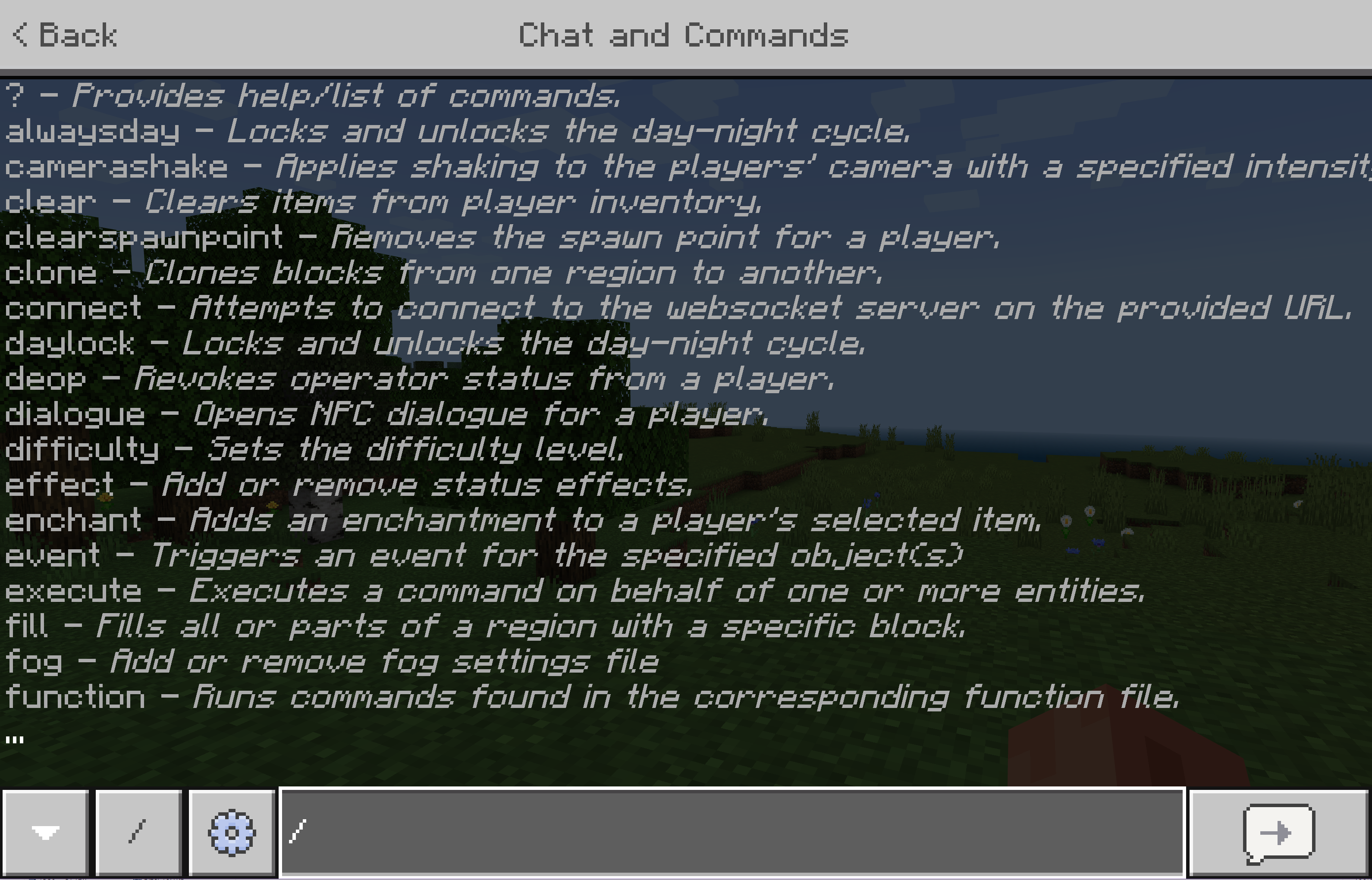
If you start with just `/`, Minecraft will even suggest command options as you type. This autocomplete feature helps you learn command names and arguments.
Enabling Cheats
To use commands in single-player mode, you must enable cheats:
- When creating a world, select “Allow Cheats: ON.”
- In existing worlds, go to “Open to LAN” and turn cheats ON.
If cheats are OFF, most commands won’t work.
Pro tip: In Bedrock Edition, you can enable cheats at any time through the settings menu. In Java Edition, you usually have to open to LAN if you forgot to enable them when creating your world. Remember, turning cheats on in survival mode will disable achievements, but gives you more freedom to experiment.
Command Syntax
Commands follow a structure. Understanding this helps you avoid mistakes:
- Command name: What you want to do (e.g., `give`, `tp`, `summon`)
- Target: Who or what the command affects (e.g., `@p` for nearest player)
- Arguments: Extra info like item names, coordinates, numbers
Example: `/give @p Iron_sword 1`
This gives one iron sword to the nearest player.
Advanced tip: Not all commands require a target. For instance, `/gamemode creative` changes your mode directly if you are typing it yourself.
Common Syntax Mistakes
- Typing commands without the slash `/`
- Spelling names or items wrong (`dimond` instead of `diamond`)
- Using wrong target selectors (`@a` for all, `@p` for nearest, `@r` for random, `@e` for entities)
- Forgetting arguments (like item quantity)
- Mixing up coordinates (always use X Y Z order)
Double-check your command before pressing Enter.
If a command fails, Minecraft will often give you an error message. Reading these carefully can help you fix mistakes quickly.
Essential Minecraft Commands For Beginners
If you’re new to commands, start with the basics. These are the most useful and easy to learn:
1. /give
Gives items to players. Example: `/give @p bread 10` (gives 10 bread). You can use tab-complete to find item names.
2. /tp
Teleports players to coordinates or other players. Example: `/tp @p 100 65 200`. You can also teleport to another player: `/tp @p Notch`.
3. /gamemode
Changes the game mode. Example: `/gamemode creative @p`. Other options are `survival`, `adventure`, and `spectator`.
4. /time Set
Changes the time of day. Example: `/time set night`. You can use numbers too: `/time set 6000` (day), `/time set 18000` (night).
5. /weather
Changes the weather. Example: `/weather clear` or `/weather rain`. Try `/weather thunder` for a storm.
6. /summon
Spawns creatures or entities. Example: `/summon zombie`. You can also specify coordinates: `/summon cow 100 65 100`.
7. /kill
Removes entities or players. Example: `/kill @e[type=zombie]` (kills all zombies). Use carefully!
8. /effect
Gives players potion effects. Example: `/effect @p speed 30 1` (speed for 30 seconds). To remove effects: `/effect @p clear`.
9. /title
Shows a custom message on screen. Example: `/title @a title “Welcome!”`. Add subtitles with `/title @a subtitle “Get ready!”`.
10. /setworldspawn
Sets the world’s spawn point. Example: `/setworldspawn 0 64 0`. All new players will spawn here.
Each command opens new possibilities. You can mix them to create complex results.
Helpful tip: If you forget the command format, type `/help` or `/help
Advanced Commands And Customization
Once you know the basics, you can try more complex commands. These use extra arguments or combine multiple commands.
Command Blocks
Command blocks are special blocks used in creative mode. They let you run commands automatically, without typing them. To get a command block, use: `/give @p command_block`
Place the block, right-click it, and enter your command. Command blocks are key for:
- Making adventure maps
- Creating puzzles or challenges
- Automating events
You can link command blocks with redstone to trigger actions.
Command blocks have three main types:
- Impulse: Orange, runs once when powered.
- Chain: Green, runs after the block behind it.
- Repeat: Purple, runs every game tick when powered.
Example: You can make a repeating command block that gives all players night vision every second:
Place a repeat block and enter `/effect @a night_vision 1 1 true`.
Chained Commands
Some tasks need multiple commands, chained together. You can:
- Use multiple command blocks
- Use semicolon (;) to separate commands (in some versions)
- Write scripts in functions for complex logic
Example:
First Block: `/summon Zombie`
Second Block: `/effect @e[type=zombie] Strength 60 2`
This spawns a zombie and gives it strength.
Experience tip: When chaining, use chain command blocks and make sure each block is set to “Always Active” or powered by redstone. The order matters—commands run from first to last.
Target Selectors
Target selectors let you choose who or what is affected:
- @p: Nearest player
- @a: All players
- @r: Random player
- @e: All entities
- @s: Yourself (in command blocks)
You can add filters:
- `/kill @e[type=sheep]` (kills all sheep)
- `/tp @a[x=100,y=64,z=200,r=10]` (teleports all players near specific coordinates)
Selectors can use many filters together. For example: `/effect @e[type=player,tag=racer] speed 30 2`.
Non-obvious insight: You can also use score filters, like `/tp @a[scores={Points=10}] 0 64 0` to teleport players with exactly 10 points.
Nbt Data
Some commands let you add NBT data—extra information about items or entities. This is advanced, but can create custom mobs, items, or blocks.
Example:
`/summon horse ~ ~ ~ {Variant:1}` (summons a different horse type)
NBT can get very detailed, allowing for custom names, enchantments, colors, and more.
Pro tip: For custom items, try `/give @p diamond_sword{Enchantments:[{id:”sharpness”,lvl:5}],display:{Name:'{“text”:”Epic Sword”}’}}`
Scoreboard System
The scoreboard lets you track scores, health, objectives, and more. Useful for mini-games and competitions.
- `/scoreboard objectives add Points dummy`
- `/scoreboard players add @p Points 1`
You can display scores and set up win conditions.
Practical example: For a race, use command blocks at the finish line to add a point when a player steps on a plate: `/scoreboard players add @p Points 1`.
Beginner tip: Scoreboard can be tricky—start simple, then add complexity as you learn.
Common Minecraft Command Mistakes
Even experienced players make errors with commands. Here are the most frequent mistakes and how to avoid them:
1. Wrong Syntax
Commands must be exact. Check spelling, spaces, and arguments. Even a small typo can break the command.
2. Incorrect Target Selector
Using `@a` instead of `@p` can affect all players, not just you. On a large server, this could give hundreds of players items by mistake.
3. Missing Arguments
Some commands need details (like item quantity or coordinates). `/give @p diamond` will only give one diamond; `/give @p diamond 64` gives a full stack.
4. Case Sensitivity
Minecraft commands are not case-sensitive, but item names are (e. g. , `diamond_sword`, not `Diamond_Sword`). If you use the wrong case, the command fails.
5. Using Without Cheats Enabled
Commands won’t work if cheats are off.
6. Forgetting The Slash
Always start with `/`.
7. Command Block Limits
Too many command blocks can cause lag. Large automated systems should be tested first.
8. Stacking Effects
Giving too many effects at once can overwhelm players. For example, giving a player both `speed` and `levitation` might make the game unplayable.
Extra tip: Remember to always keep a backup of your world before trying dangerous commands like `/fill` or `/kill @e`. This can save hours of work if something goes wrong.
Tip: Test commands in a creative world before using them in your main game.
Practical Examples: Real-world Command Use
Seeing commands in action makes them easier to understand. Here are some real examples:
Creating A Custom Mini-game
You want to make a simple race. Players must reach a goal, and the first one wins.
- Set up the race track.
- Use `/tp` to move all players to the start: `/tp @a 0 64 0`.
- Use `/title` to signal the start: `/title @a title “GO! “`.
- Use `/scoreboard` to track who crosses the finish line. Place a pressure plate at the end that runs `/scoreboard players add @p Points 1`.
- Use `/gamemode adventure` to prevent flying.
Advanced idea: Use `/effect @a[distance=..5] speed 10 2` to give a speed boost to players near the starting line.
Changing The Environment
Want To Build In Daylight And Clear Weather?
- `/time set day`
- `/weather clear`
Want To Make A Spooky Night?
- `/time set midnight`
- `/weather thunder`
Extra detail: You can set weather for a certain time: `/weather rain 120` will make it rain for 2 minutes.
Giving Items For A Challenge
Give players starting gear:
- `/give @a iron_sword 1`
- `/give @a bread 16`
- `/give @a shield 1`
Example: For a PvP match, use `/clear @a` first to clear inventories, then `/give` for balanced gear.
Summoning Mobs For Battle
Create a wave of enemies:
- `/summon zombie ~ ~ ~`
- `/summon skeleton ~ ~ ~`
- `/summon spider ~ ~ ~`
Add effects:
- `/effect @e[type=zombie] speed 60 2`
- `/effect @e[type=skeleton] strength 60 2`
Advanced example: Spawn 10 creepers in a line:
`/summon creeper ~1 ~ ~`, `/summon creeper ~2 ~ ~`. . . up to `/summon creeper ~10 ~ ~`.
Automating With Command Blocks
Set up a puzzle where players must find a hidden button. When pressed, a command block gives a reward:
- `/give @p diamond 1`
Combine with redstone for timing or sequence.
Non-obvious insight: You can use `/testfor` command blocks to check if a player is standing on a certain block, and then trigger actions automatically.
Comparison: Minecraft Commands Vs Mods
Many players wonder if commands or mods are better for changing Minecraft. Here’s a clear comparison:
| Feature | Commands | Mods |
|---|---|---|
| Ease of Use | Simple, built-in | Requires installation |
| Compatibility | Works on all platforms | Often PC-only |
| Customization | Limited by game rules | Very flexible |
| Safety | No extra downloads | Risk of malware |
| Community Support | Official and forums | Mod websites |
| Multiplayer Support | Works on realms/servers | Often not supported |
| Updates | Always up-to-date | May break with updates |
Commands are quick and safe, but mods can do more. If you just want to tweak the game, commands are ideal. For big changes, mods are better.
Extra detail: Mods often need a specific Minecraft version and a loader (like Forge or Fabric). Commands are always ready and don’t require restarting the game.
Top 20 Most Useful Minecraft Commands
Let’s look at the 20 most useful Minecraft commands, with short explanations:
1. /give
Give items to players. Example: `/give @p apple 5`.
2. /tp
Teleport players or entities. Example: `/tp @p 100 70 200`.
3. /gamemode
Change game mode. `/gamemode creative` or `/gamemode survival`.
4. /time Set
Adjust time of day. `/time set noon`.
5. /weather
Change weather. `/weather clear`.
6. /summon
Spawn creatures or entities. `/summon wolf`.
7. /kill
Remove entities or players. `/kill @e[type=skeleton]`.
8. /effect
Give potion effects. `/effect @p jump_boost 45 3`.
9. /title
Show messages on screen. `/title @a title “Victory! “`.
10. /setworldspawn
Set the world’s spawn point. `/setworldspawn 0 70 0`.
11. /scoreboard
Track scores, objectives. `/scoreboard objectives add Race dummy`.
12. /clear
Clear inventory. `/clear @p`.
13. /clone
Copy blocks from one place to another. `/clone 0 64 0 10 70 10 100 64 100`.
14. /fill
Fill area with blocks. `/fill 0 64 0 10 70 10 stone`.
15. /replaceitem
Replace items in slots. `/replaceitem entity @p slot. weapon. mainhand diamond_sword`.
16. /xp
Give experience points. `/xp 500 @p`.
17. /blockdata
Change block data (Java Edition only). `/blockdata 100 64 100 {powered:1b}`.
18. /entitydata
Change entity data (Java Edition only). `/entitydata @e[type=zombie,limit=1] {Health:10}`.
19. /spawnpoint
Set personal spawn point. `/spawnpoint @p 0 64 0`.
20. /save-all
Save the world data. Useful for servers.
Learning these gives you full control over your Minecraft experience.
Non-obvious insight: Many commands can be combined with selectors and filters for even more power. For example, `/tp @a[tag=runner] 100 65 200` teleports only players with the “runner” tag.
Table: Command Effects On Gameplay Modes
Commands work differently in each Minecraft mode. Here’s a comparison:
| Command | Survival Mode | Creative Mode | Adventure Mode |
|---|---|---|---|
| /give | Requires cheats | Always works | Requires cheats |
| /tp | Requires cheats | Always works | Requires cheats |
| /gamemode | Can switch modes | Can switch modes | Can switch modes |
| /summon | Requires cheats | Always works | Requires cheats |
| /kill | Requires cheats | Always works | Requires cheats |
| /effect | Requires cheats | Always works | Requires cheats |
| /clear | Requires cheats | Always works | Requires cheats |
| /setworldspawn | Requires cheats | Always works | Requires cheats |
You can see that most commands need cheats enabled in survival and adventure modes, but always work in creative.
Extra detail: In Adventure mode, commands can help map makers control player actions, such as locking inventory or disabling mob griefing.
Customizing Your World With Commands
Commands let you shape your world in ways normal gameplay never could. Here are some creative ideas:
Building Massive Structures
With `/fill` and `/clone`, you can build or copy huge areas quickly.
- `/fill 100 64 100 120 70 120 stone`
(fills A 20x6x20 Area With Stone)
- `/clone 100 64 100 120 70 120 200 64 200`
(copies An Area To A New Place)
Advanced tip: Use `/fill` with air to clear land:
`/fill 100 64 100 120 70 120 Air`
You can also use `/fill` with different block states, like colored wool:
`/fill 100 64 100 120 64 120 wool 14` (red wool)
Making Unique Mobs
Summon mobs with special properties:
- `/summon zombie ~ ~ ~ {CustomName: “Bob”,IsBaby:1,Health:40}`
- `/summon sheep ~ ~ ~ {Color: 4}` (pink sheep)
Add armor or effects:
`/summon Skeleton ~ ~ ~ {armoritems:[{id:diamond_helmet,count:1b}]}`
Non-obvious insight: You can make invisible mobs:
`/summon Creeper ~ ~ ~ {invisible:1}`
Setting Up Traps Or Puzzles
Use command blocks to create traps:
- When a player steps on a plate, summon a skeleton:
`/summon Skeleton @p`
- Give clues with `/title` or `/tellraw`.
`/tellraw @p {“text”:”look Behind You!”,”color”:”red”}`
- Teleport players into mazes:
`/tp @p 200 65 200`
Extra tip: Combine command blocks with redstone repeaters for timed traps.
Changing Game Rules
The `/gamerule` command lets you change rules:
- `/gamerule keepInventory true` (keep items on death)
- `/gamerule mobGriefing false` (mobs can’t destroy blocks)
- `/gamerule doDaylightCycle false` (freeze time)
- `/gamerule commandBlockOutput false` (hide command block messages)
These commands can make survival easier, or set up challenges.
Advanced: Try `/gamerule doImmediateRespawn true` for instant respawn without the death screen.

Credit: www.minecraft.net
Command Block Automation: Tips And Tricks
Command blocks can automate nearly anything. Here are some practical tips:
Basic Command Block Setup
- Place a command block.
- Power it with redstone (lever, button, or circuit).
- Enter your command.
- Test the command.
Tip: Use `/give @p command_block` to get a block, since they can’t be found in the inventory menu.
Advanced Automation
- Chain command blocks: Link several together so one triggers the next. Place a chain block behind the first, set to “Always Active.”
- Repeat command blocks: Set to repeat, so the command runs constantly. Great for timers or continuous effects.
- Impulse command blocks: Runs once when triggered.
Example: Automated Door
You want a door to open when a player approaches:
- Use a pressure plate to trigger a command block.
- Command block runs `/setblock x y z air` (removes door block).
- Add another block to replace the door after a delay: `/setblock x y z oak_door`.
Example: Spawn Waves
Create a system that spawns enemies in waves:
- Use repeat command blocks with timers.
- Each block summons a mob.
- Use `/title` to warn players: `/title @a title “Wave 2! “`
Extra detail: Use `/testfor @a[distance=..5]` in a repeating block to check if a player has reached a point, then trigger new events.
Avoiding Lag
Too many command blocks running at once can slow your game. Test in small areas first. Use efficient commands, and limit how often repeat blocks run.
Pro tip: Remove unused command blocks, and use `/kill @e[type=item]` sometimes to clear dropped items.
Minecraft Command Syntax: In-depth
Understanding command syntax helps you avoid mistakes and create advanced commands.
Arguments
Most commands need arguments:
- Coordinates: `/tp @p 100 65 200`
- Item names: `/give @p diamond 5`
- Effects: `/effect @p speed 30 1`
Many commands allow for optional arguments. For example, `/give` can specify NBT data for custom items.
Target Selectors
You can filter targets with brackets:
- `/kill @e[type=sheep,sort=nearest,limit=3]`
(kills Three Nearest Sheep)
- `/effect @a[distance=..5] resistance 60 1`
(gives Resistance To All Players Within 5 Blocks)
Relative Coordinates
Use `~` for relative position:
- `/tp @p ~ ~10 ~`
(teleports Player 10 Blocks Up)
- `/setblock ~ ~1 ~ stone`
(places A Stone Block Above The Command Block)
Nbt Data Examples
- `/summon zombie ~ ~ ~ {Fire: 20}`
(spawns A Zombie On Fire)
- `/give @p bow{Enchantments: [{id:”minecraft:power”,lvl:5}]}`
(gives A Bow With Power V)
Tip: Use curly braces `{}` for NBT data. Spelling and punctuation must be exact.
Chaining Commands
Some versions let you run multiple commands with a semicolon `;`:
- `/tp @p 100 65 200 ; give @p diamond 5`
But this doesn’t work in all versions. Command blocks are better for chaining.
Extra insight: Minecraft functions (in datapacks) allow you to write a list of commands in a file and run them all at once with `/function`.
Credit: learn.microsoft.com
Data Table: Command Complexity Levels
Here’s a table showing how complex different commands are for beginners:
| Command | Difficulty | Common Mistakes |
|---|---|---|
| /give | Easy | Wrong item name, missing quantity |
| /tp | Easy | Wrong coordinates, missing target |
| /summon | Medium | Wrong entity name, missing NBT data |
| /effect | Medium | Wrong effect ID, time/strength errors |
| /scoreboard | Hard | Syntax, objective setup |
| /fill | Medium | Coordinates, block type |
| /clone | Medium | Source/destination confusion |
| /title | Easy | Wrong formatting |
Start with easy commands, then move to more complex ones as you gain confidence.
Tip: Practice in creative mode, and don’t be afraid to experiment.
Commonly Overlooked Insights About Minecraft Commands
Many guides skip important details. Here are some insights beginners often miss:
1. Command Permissions
In multiplayer, not everyone can use commands. Only players with operator status (OP) can run commands. Admins must grant OP by `/op username`.
Extra detail: On realms and many servers, command blocks can only be placed and edited by OPs.
2. World Safety
Commands like `/kill` and `/fill` can destroy your world quickly. Always test in a backup world first.
Pro tip: Use `/fill` with `outline` or `hollow` to avoid filling huge areas by accident:
`/fill 0 64 0 10 70 10 Glass Outline`
3. Command Block Security
On servers, command blocks can be abused. Only trusted players should have access. Use `/gamerule commandBlockOutput false` to hide output for privacy.
Also, consider using plugins to log command block usage on large servers.
4. Version Differences
Some commands change between Minecraft versions (Java, Bedrock, Pocket Edition). Always check the command syntax for your version. For details, see the official Minecraft wiki at Minecraft Commands Wiki.
Non-obvious insight: Even the order of arguments can change between versions. Always test complex commands before using them widely.
5. Using Json Text
Commands like `/tellraw` and `/title` use JSON formatting for colors, bold text, and clickable links. Mastering JSON lets you create rich messages and interactive elements.
Example:
`/tellraw @a {“text”:”click Me!”,”color”:”gold”,”bold”:true,”clickevent”:{“action”:”run_command”,”value”:”/give @p Diamond”}}`

Credit: www.ign.com
How To Practice And Improve Command Skills
Learning commands takes practice. Here are ways to improve:
- Create a test world: Use creative mode with cheats ON.
- Try each command: Start with basic ones, then test advanced commands.
- Use command blocks: Practice automating actions.
- Build mini-games: Try puzzles, races, or battles using commands.
- Read the wiki: The official Minecraft wiki has detailed command syntax.
Practical Challenges
- Set up a teleportation network using `/tp` and command blocks.
- Make a custom boss with `/summon` and NBT data.
- Automate weather and time changes for events.
- Build a working elevator using `/tp` and pressure plates.
- Set up a scoreboard-based competition, such as a parkour race.
Learning by doing is the fastest way. Don’t be afraid to experiment.
Extra tip: Try joining servers with custom maps and see how they use commands. You can learn a lot by exploring community creations.
Minecraft Commands For Server Admins
Server admins use commands to manage players, enforce rules, and fix problems.
Useful Admin Commands
- `/ban username` (ban player)
- `/kick username` (remove player)
- `/op username` (give operator status)
- `/deop username` (remove operator status)
- `/whitelist add username` (add player to whitelist)
- `/setworldspawn x y z` (set spawn point)
- `/tp username1 username2` (move player to player)
- `/say message` (broadcast a message to all players)
- `/gamerule doFireTick false` (fire does not spread)
- `/save-all` (force save world)
Admin Tips
- Use `/gamerule` to adjust rules (keep inventory, mob griefing)
- Set up command blocks for automated messages or events
- Limit command block access for security
- Use `/list` to see who is online
Non-obvious insight: Use `/title @a actionbar “Server restarting in 1 minute!”` to notify players without spamming the chat.
Server commands are essential for running a fair and fun multiplayer world.
Minecraft Commands For Adventure Map Creators
Adventure maps use commands to create puzzles, stories, and challenges. Here’s how creators use them:
1. Trigger Events:
Use command blocks to start events when players reach certain areas.
For example, `/testfor @p[x=100,y=65,z=100,r=1]` triggers when a player stands on a certain block.
2. Give Hints:
Use `/title` or `/tellraw` for clues.
Example: `/title @p Title “find The Lever To Escape!”`
3. Control Environment:
Change weather, time, and game rules.
Example: `/time set night` for a spooky atmosphere.
4. Custom Mobs:
Spawn special enemies with effects or NBT data.
Example: `/summon Skeleton ~ ~ ~ {customname:”archer”,armoritems:[{id:”minecraft:iron_helmet”,count:1b}]}`
5. Track Progress:
Use `/scoreboard` to track objectives.
Example: Increase a score when a puzzle is solved, and trigger new events when the score reaches a goal.
Extra tip: Adventure map creators often use `/setblock` to open doors, `/fill` to create walls, and `/tp` for cutscenes.
Adventure maps rely on commands for creativity and gameplay.
Troubleshooting: Fixing Command Problems
Commands sometimes fail. Here’s how to fix common issues:
Syntax Errors
- Double-check spelling, spaces, and order.
- Use the correct slash `/`.
- Use tab-complete for help.
Permissions
- Make sure you’re OP on multiplayer servers.
- Enable cheats in single-player.
Version Mismatch
- Commands may change between versions. Look up syntax for your version.
Too Many Entities
- Summoning too many mobs can cause lag or crashes.
- Use `/kill @e[type=zombie]` to clear mobs if things get out of control.
World Corruption
- Large `/fill` or `/clone` commands can damage your world. Test in backups.
- Save your world before running risky commands.
Command Block Issues
- Redstone may not trigger the block.
- Make sure command blocks are powered.
- Check that “Enable Command Blocks” is true in server properties.
If commands still fail, restart the game or check the Minecraft wiki for help.
Minecraft Command Resources And Community
If you want to learn more, the Minecraft community offers many resources:
- Minecraft Wiki: Official command syntax and guides.
- YouTube Tutorials: Visual guides for complex commands. Search for “Minecraft command block tutorial.”
- Reddit: Discussion and help from other players. R/MinecraftCommands is a helpful community.
- Discord Servers: Real-time advice and tips.
- Forums: Share maps, scripts, and ideas.
- Planet Minecraft: Download and study maps and datapacks made by others.
Learning from others speeds up your progress. Try joining a server or watching tutorials.
Extra tip: Many large servers have public documentation for their command systems—you can get inspiration from how they automate games and events.
Frequently Asked Questions
What Are Minecraft Commands Used For?
Minecraft commands are used to control the game, give items, change settings, automate actions, and create custom gameplay. They help players build, experiment, and manage worlds easily.
Can I Use Commands In Survival Mode?
Yes, but you must enable cheats when creating the world, or use “Open to LAN” and turn cheats ON. Without cheats, most commands are blocked in survival mode.
What Is A Command Block?
A command block is a special block in Minecraft that runs commands automatically when powered by redstone. It’s used for automation, puzzles, mini-games, and adventure maps. Only available in creative mode.
Are Commands The Same In All Minecraft Versions?
No, some commands are different between Java Edition, Bedrock Edition, and mobile versions. Always check the syntax for your version. The official wiki lists differences.
How Can I Learn Advanced Commands?
Practice in creative mode, use command blocks, read tutorials, and study the Minecraft wiki. Try building mini-games or adventure maps to use advanced commands in real situations.
Minecraft commands are a powerful tool that can transform your gameplay. Whether you want to build faster, create your own games, or manage a server, learning commands gives you new possibilities. Start with the basics, experiment with advanced features, and connect with the community to share and learn.
With practice, you’ll become a Minecraft command expert, able to shape your worlds exactly how you want.